Uniden SDS100 · Volume 3
Uniden SDS100 — Vol 3: Programming
TrueIQ baseband, P25 Phase II, ProVoice option, DMR/NXDN
3.1 Programming workflow
The SDS100 is not programmed by hand. The codeplug is too complex (hundreds of talkgroups, dozens of sites, multiple system types per favorites list, per-talkgroup metadata) for manual entry to be practical. The standard workflow uses ProScan (third-party CPS, paid) or Sentinel (Uniden CPS, free) on Windows, pulling system definitions from RadioReference.com (paid database subscription).
3.1.1 ProScan vs Sentinel — choosing the CPS
Both program the SDS100 (and SDS200, BCD536HP, BCD436HP, Homepatrol). Same job at the machine level — read the codeplug, edit on PC, write it back — different user experience.
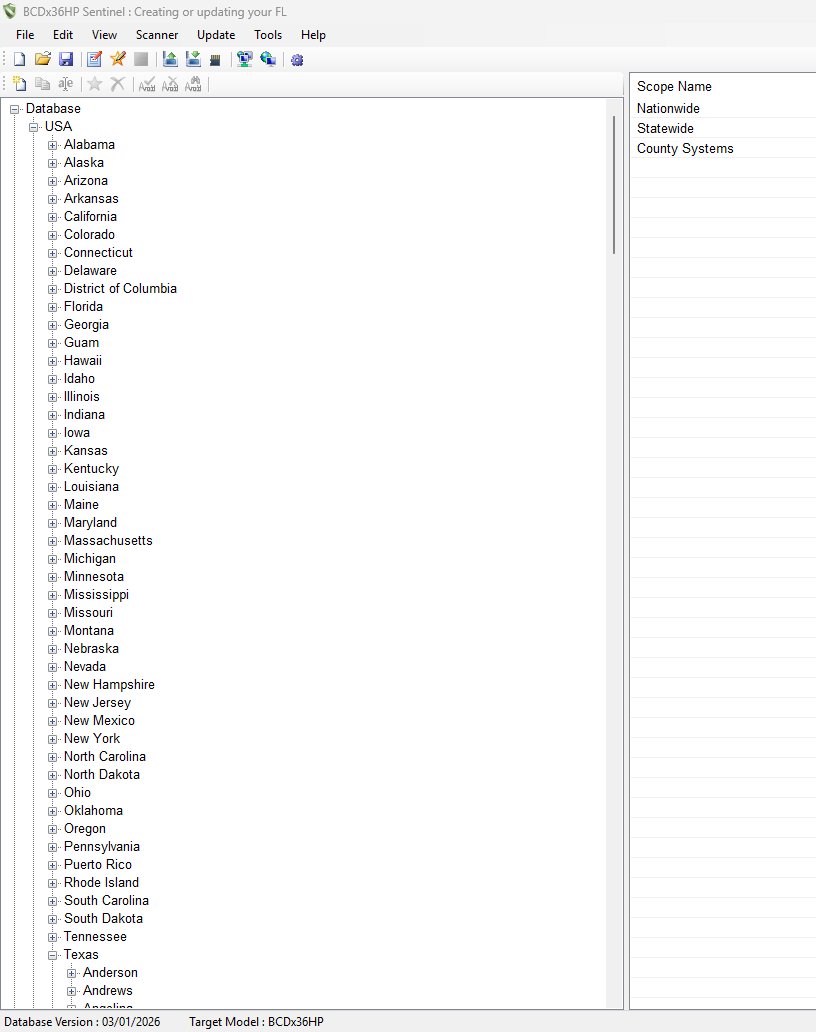
Sentinel is Uniden’s free first-party CPS. Simple interface mirroring the radio’s menu structure. Pulls system definitions from RadioReference (paid RR subscription required); manages firmware updates; manages favorites-list selection and quick-key mapping. Adequate for most users; what Uniden recommends to a new owner.
ProScan is a third-party paid CPS (one-time license, mid-2026 pricing roughly $40-60 — TBD — verify current pricing). Originally written for the older Uniden scanners (BCD396XT, BC246T) when first-party software was weaker; carried into the SDS-series with a richer feature set: bulk-edit on talkgroups (rename/retag/retone by pattern), virtual-radio simulation, advanced quick-key planning, CSV / RR-XML import-export, richer playback UI. Worth the license for an operator who programs often.
The setup runs ProScan 24.4 as the daily-driver, with 24.0 archived in programs/proscan/v24.0/ as a known-good fallback. License file at programs/proscan/license-key.txt. Both versions co-exist in the ProScan Wine prefix on Parrot at ~/.wine-proscan/; see Vol 3 §4 (ProScan on Linux via Wine) ↗. Sentinel is also installed on the Windows partition for fallback firmware updates (Sentinel’s update path is more reliable). Full CPS comparison in Vol 3.
3.1.2 RadioReference — the database
System definitions are not entered by hand. They come from RadioReference.com, the canonical community-maintained database — per-system control channels, per-site GPS coordinates, per-talkgroup names, modulation parameters. A paid RadioReference subscription (mid-2026 approximately $30/year — TBD — verify against most-recent renewal date) unlocks the database-API access that ProScan and Sentinel use for direct system imports. Without a subscription you can still browse the web UI and manually enter frequencies, but that defeats most of the SDS100’s productivity. Pays for itself the first time you import a 200-talkgroup metro public-safety system in one click.
RadioReference workflow with ProScan: connect SDS100 via USB-C → ProScan reads current codeplug → open RR Browser within ProScan → navigate to system (e.g., MPSCS) → “Import to ProScan”, choose target favorites list + quick-key → review imported alpha tags / talkgroup priorities / attenuator settings → write codeplug back to radio. Total ~5 minutes per new system, most of it reviewing the import.
3.1.3 Codeplug structure on the SD card
The SDS100’s “codeplug” is not a single file — it is the entire /SDS100/ directory tree on the SD card. Key files:
/SDS100/Sentinel.dat— the master database; Sentinel’s native format; contains favorites lists, systems, sites, channels, talkgroups, GPS coordinates, all configuration/SDS100/Favorites/*.hpf— individual favorites list files (HomePatrol-Favorites format), one per favorites list/SDS100/Recordings/*.wav— recorded audio captures (per per-channel record-on-hit setting); WAV format, mono, ~16 kHz sample rate/SDS100/Logs/*.log— GPS logs and Discovery-mode logs/SDS100/Firmware/*.bin— firmware images (uploaded by Sentinel or ProScan during update)/SDS100/Profiles/*.hpd— user profile configurations (favorites-list-selection snapshots; see §7 for the profile-switching trick)
Both ProScan and Sentinel read and write this directory tree directly when the radio is connected via USB-C (the radio presents the SD card as a USB Mass Storage Device when first plugged in; the CPS then operates on the mounted filesystem). The radio can also be programmed with the SD card removed and read in a card reader — useful for backup and for bulk-editing offline.
3.1.4 Firmware updates
Pushed via Sentinel (more reliable) or ProScan (also works but has had occasional hiccups). The current firmware on this SDS100 is TBD — verify against the unit; Uniden publishes updates 2-3× per year addressing decode quality, new modulation variants, and bug fixes. Check Uniden’s support page (linked in §8) periodically.
Process: connect via USB-C → launch Sentinel → “Firmware Update” → radio reboots into bootloader → Sentinel writes firmware → radio reboots into operating mode. ~5 minutes total; do not unplug or power-cycle mid-update (bricks the radio, requires a Uniden service ticket). Always back up the codeplug immediately before a firmware update — normal updates preserve SD card contents, but a failed update can corrupt the SD filesystem.
3.2 Codeplug backups
Backup discipline is non-negotiable on the SDS100 because the codeplug is large, deeply customized, and time-expensive to recreate. The radio’s /SDS100/ directory on the SD card runs ~50-200 MB depending on how many recordings are stored; a full backup is just an SD-card image copied to programs/uniden-sds100/codeplug-backups/.
3.2.1 Backup cadence
Backup the SD card:
- After every meaningful favorites-list edit — adding a new system, reorganizing favorites lists, changing quick-key assignments, adjusting site GPS coordinates
- Before every firmware update — without exception
- Before any “experimental” change — testing a new attenuator setting across many channels, importing a large new system, manual-editing
Sentinel.dat - On a calendar schedule — at minimum monthly, even with no changes, just to capture any cumulative state drift (recording logs, GPS logs, quick-key state)
3.2.2 Backup location and naming convention
Backup files live in ../../programs/uniden-sds100/codeplug-backups/ (relative to this volume source — absolute path is Scanners/programs/uniden-sds100/codeplug-backups/). The naming convention is sds100-{nickname}-YYYY-MM-DD.tar.gz where {nickname} is the SDS100 unit nickname from the inventory (TBD — verify the current nickname; the SDS100 should have a registered nickname like sds100-belt or similar). Recent backups for the primary SDS100 should look like:
programs/uniden-sds100/codeplug-backups/
├── sds100-{nickname}-2026-05-01.tar.gz    (pre-update baseline)
├── sds100-{nickname}-2026-05-08.tar.gz    (after MPSCS site additions)
├── sds100-{nickname}-2026-05-15.tar.gz    (after firmware update to X.Y.Z)
└── sds100-{nickname}-2026-05-22.tar.gz    (current)
The most-recent backup file is TBD — verify the date against the backup directory. Each backup tarball should contain the entire /SDS100/ directory tree from the SD card. The Sentinel .dat file alone is not sufficient as a backup because it does not capture per-favorites-list HPF files, recordings, GPS logs, or firmware images. Tar the whole tree.
3.2.3 Backup mechanics
The two practical paths:
Via ProScan / Sentinel — both have a “Backup” function that writes a copy of the codeplug to a chosen path. ProScan’s backup writes a single .hpdb file (Uniden’s compact HomePatrol-database format); Sentinel’s backup writes a directory tree. Either is valid; both have been observed to truncate or skip files under rare conditions (CPS bugs), so the direct SD-card tar is more trustworthy for “I really need this to work in three months when the radio is in pieces.”
Via direct SD-card copy — remove the SD card from the radio, insert into a card reader on the host PC, and tar czf sds100-{nickname}-$(date +%Y-%m-%d).tar.gz /media/<user>/SDS100/SDS100/. This is the gold-standard backup. Takes ~30 seconds. Restore is a tar extract back to a fresh SD card formatted FAT32; the radio boots into the restored configuration the next time it powers on.
3.2.4 Restore procedure
If the radio’s SD card corrupts (rare but happens, especially with the older smaller microSDHC cards), the restore is:
- Format a known-good microSDHC (32 GB or smaller, FAT32) in a PC card reader
- Extract the most-recent backup tarball to the SD card root:
tar xzf sds100-{nickname}-YYYY-MM-DD.tar.gz -C /media/<user>/SDS100/ - Verify the directory structure is
/SDS100/Sentinel.dat,/SDS100/Favorites/, etc. at the root - Insert SD card into radio, power on — radio should boot to the same configuration as the backup date
Note that recordings made after the backup date are lost, GPS logs after the backup date are lost, but the operational codeplug is restored.
3.2.5 The “I’m about to do something risky” backup
For substantial changes (importing a 500-talkgroup system, hex-editing Sentinel.dat, testing a beta firmware), take a pre-change backup with a descriptive suffix: sds100-{nickname}-2026-05-24-PRE-mpscs-import.tar.gz. Makes it obvious in three weeks which backup to restore when you realize the import broke something subtle.
Comments (0)