Uniden Homepatrol · Volume 3
Uniden Homepatrol — Vol 3: Programming
Load-by-location digital scanner, no per-channel programming
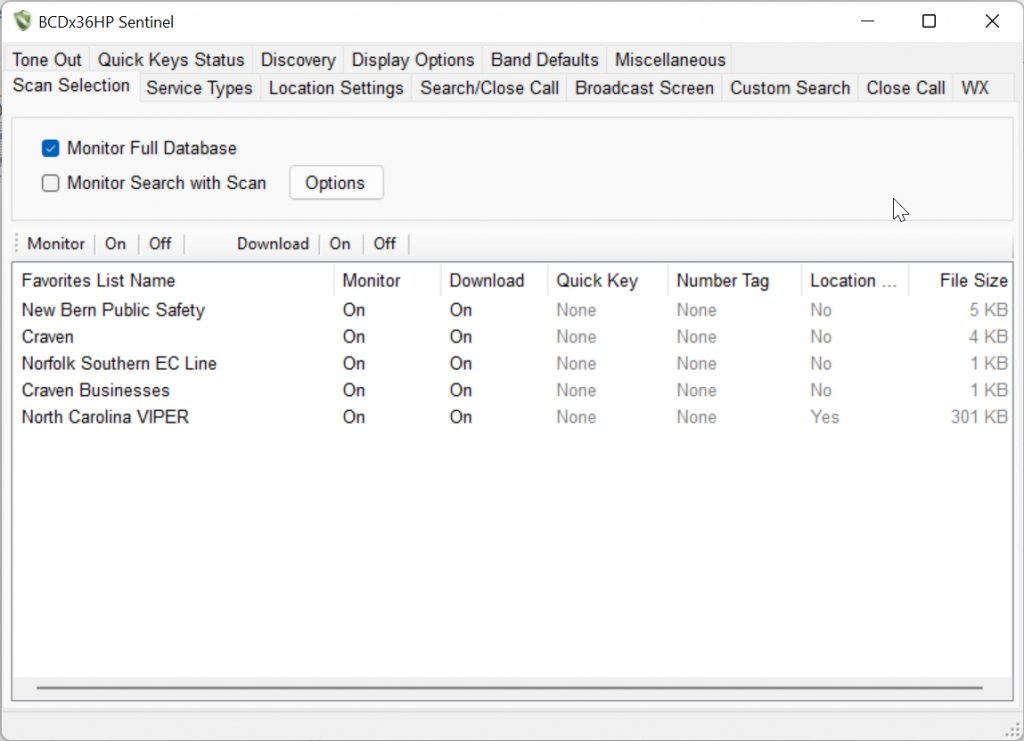
3.1 Programming workflow
The HomePatrol uses Sentinel — Uniden’s free Windows-only configuration utility — for everything beyond the on-device ZIP-code workflow. Sentinel is covered in depth in Vol 3 (Programming software landscape); the HomePatrol-specific notes are below.
What Sentinel does for the HomePatrol:
- Firmware updates — pulls the latest firmware from Uniden’s update server and writes it to the connected scanner. Firmware update bricks are rare but possible; do not interrupt the operation, and keep the scanner on AC power throughout.
- RadioReference database refresh — pulls the most recent national-scope database snapshot from RadioReference (requires an active RadioReference Premium Subscription, ~$15/yr) and writes it to the scanner’s SD card. This is the operation that keeps the ZIP-code workflow accurate; agencies add and remove systems, change frequencies, and migrate from Phase I to Phase II constantly. A snapshot more than 6-12 months old will have meaningful gaps in major metro coverage.
- Favourites list editing — Sentinel exposes the scanner’s internal favourites mechanism (systems-of-interest that bypass the ZIP-code-driven dynamic loading and are always scanned). Use favourites for: the local amateur repeaters that the RadioReference public-safety query doesn’t include, specific talkgroups within a county system that should always be monitored, business / utility systems not in the default categories.
- Per-system Quick Keys — toggle systems on and off without leaving scan mode. HomePatrol’s Quick Key implementation is shallower than the BCD536HP’s (10 keys vs. 100); for any operator who wants deep per-system organization, the BCD536HP is the better fit.
- Recordings transfer — pulls the SD card’s audio recordings to the host PC as WAV files for archival or playback.
What Sentinel does not do: ProScan-style per-talkgroup priority weighting, ARC-style per-frequency colour coding, custom database editing (RadioReference-or-nothing for the on-board database), or any of the deeper trunked-system diagnostics (control-channel decode logging, voice-channel hopping visualization) that the SDS100/200 line ↗ supports via their respective tools.
The cable is the same micro-USB cable used for charging on HP-2 (mini-USB on HP-1). No special programming cable required — the USB driver installs from the Sentinel installer on first connect.
The first-run workflow for a new (or newly-acquired-used) HomePatrol:
- Install Sentinel from Uniden’s download page.
- Connect the scanner, let the driver install.
- Sentinel offers a firmware update — accept it if available.
- Sentinel offers a database update — accept it (requires RadioReference Premium Sub login).
- Reboot the scanner. From the on-device main screen, enter a known-good ZIP and verify systems load correctly.
- Refresh database quarterly thereafter; firmware as offered.
3.2 Codeplug backups
The HomePatrol’s “codeplug” is unusual among scanners — most of its working configuration lives on the SD card (database snapshot + favourites + recordings + Quick Keys) rather than in the device’s NOR flash. Sentinel exports the user-modifiable portions (favourites, Quick Keys, per-location preferences) as a single XML-based profile file; the database snapshot itself is treated as a refresh target rather than a backup artefact.
Backup pattern. From Sentinel → “Profiles” → “Save Profile” → export the HomePatrol profile to ../../programs/uniden-homepatrol/. Date-stamp the filename (e.g. homepatrol_profile_2026-05-24.spr for Sentinel Profile format). Backups should be taken before any major database refresh (so a problematic database update can be reverted by re-importing the old profile plus rolling back the database) and after any significant favourites-list edit.
Most recent backup: TBD — verify against the unit. No backups currently in the programs/uniden-homepatrol/ directory; the first session that touches the bench unit should create a baseline backup before any other edits. See the parallel backup discipline in Vol 15 §5 ↗ — the Sentinel data directory pattern applies identically here, since the same Sentinel installation manages both scanners.
Restore. From Sentinel → “Profiles” → “Open Profile” → select the saved .spr → “Write to Scanner”. This pushes the saved favourites and Quick Keys back to the scanner; if the database has also been corrupted (rare), re-run the RadioReference refresh to repopulate.
The “I bricked the firmware update” recovery. If a firmware update fails mid-write, the HomePatrol drops into a recovery USB mode that Sentinel detects automatically and offers to re-flash. The recovery mode is robust — there is no documented case of a recovery-mode flash failing — but the operation requires reliable AC power on the scanner and a stable USB connection, so do not attempt over a flaky cable or with the battery low.
Comments (0)